Free Transparent QR Code Generator
Overlay your QR code on any photo with smart contrast. Transparent QR codes that blend with your design. Free, no signup.
Create Transparent QR Code → Overlay your QR code on any photo with smart contrast. Transparent QR codes that blend with your design. Free, no signup.
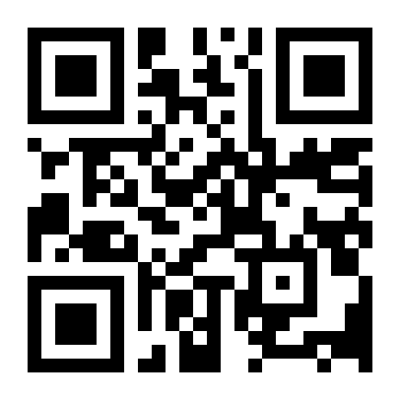
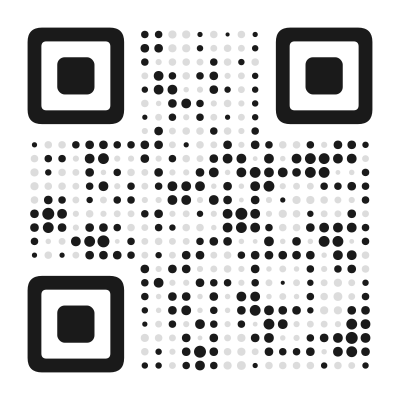
Create Transparent QR Code →A transparent QR code is rendered directly on top of a background image. Instead of the standard white background behind black modules, the image shows through — turning the QR code into part of your visual design rather than an interruption of it.
Think of a restaurant menu with a QR code overlaid on a food photo. A concert poster where the code blends into the artwork. A product label where the code sits seamlessly on the product image. The code is still there, still scannable, but it feels integrated rather than pasted on top.
This is one of the most requested features in QR code design, and one that most free generators do not offer.
The fundamental challenge of transparent QR codes is scannability. A QR code scanner needs to distinguish dark modules from light spaces. When a complex image sits behind the code, that distinction can disappear — a dark module over a dark area of the photo becomes invisible.
Smart contrast addresses this by analyzing the background image and adapting the module rendering to maintain readable contrast. There are several techniques at work:
Color adaptation. The module color adjusts based on what is behind it. Over light areas, modules stay dark. Over dark areas, modules can be rendered in a lighter color or with an outline that separates them from the background.
Semi-transparent backing. A subtle semi-transparent layer between the image and the modules ensures minimum contrast without completely hiding the background. This is adjustable — more backing means more scannability at the cost of less image visibility.
Module outline. Adding a thin contrasting border around each module makes them stand out against any background. This works especially well with dot and rounded styles, where the circular outline creates a clean separation.
The live preview updates in real time as you adjust these settings, so you can find the right balance between design and function.
Place a QR code directly on your product photo — linking to a product page, review section, or purchase link. The code becomes part of the image rather than a separate element competing for space. This works particularly well for e-commerce listings, catalogs, and social media product posts.
Instead of a plain QR code in the corner of your business card, overlay it on your headshot, logo, or a branded texture. The transparent code adds sophistication and shows attention to design — which matters when your business card represents your personal brand.
Event posters have limited space, and a standard black-and-white QR code can clash with carefully designed artwork. Transparent mode lets the code blend with the poster’s visual language. Place it over a background section of the artwork where the code complements rather than disrupts.
Instagram posts, stories, and TikTok thumbnails benefit from QR codes that match the visual style. A transparent code overlaid on your branded content looks native to the platform rather than like an afterthought. This increases the chance that people will actually scan it.
Product packaging is the most common physical location for QR codes, and transparent mode helps the code fit the packaging design language. Overlay the code on a texture, pattern, or product image that is already part of the label design.
Restaurant and cafe menus increasingly use QR codes for digital ordering, full menu access, or review links. A transparent code overlaid on a food photo or branded background feels more premium than a stark black square in the corner.
Not every image works well as a QR code background. The wrong choice produces an unscannable mess. The right choice produces a beautiful, functional design.
Large areas of consistent tone. Images with broad, evenly-colored regions give modules space to stand out. A sky, a gradient wall, a solid-colored surface — these provide contrast without visual noise.
Soft focus and blur. Slightly blurred backgrounds work better than sharp, detailed ones. The blur reduces the visual complexity behind the modules, improving contrast. Some designers even apply a subtle Gaussian blur to the background area behind the code.
Low contrast in the code area. The background image can have high contrast overall, but the specific area where the QR code sits should be relatively uniform. A dramatic landscape photo works well if the code is placed over the calm sky, not over the detailed foreground.
Avoid these backgrounds:
QR codes have four levels of error correction: L (7%), M (15%), Q (25%), and H (30%). The percentage indicates how much of the code can be damaged or obscured while remaining scannable.
For transparent QR codes, higher error correction is strongly recommended. The background image inevitably obscures some module edges or reduces contrast in certain areas. Higher error correction gives the scanner more redundant data to work with, compensating for the visual noise introduced by the background.
Use at least M (15%) for transparent codes. If the background is busy or the code will be printed small, step up to Q (25%) or H (30%). The trade-off is that higher error correction produces denser codes with more modules, which need more physical space to scan — but for transparent codes, this extra resilience is worth it.
Test extensively. Transparent codes are more sensitive to scanning conditions than standard codes. Test with at least three different phones, in different lighting conditions, and at the intended scanning distance. What looks beautiful on your screen might not scan reliably when printed on a matte flyer under fluorescent light.
Increase the module size. Larger modules are easier for scanners to read against a complex background. In the designer, increase the overall code size or reduce the data density (use a shorter URL) to produce fewer, larger modules.
Use high-contrast module colors. Dark modules on a light background or light modules on a dark background. Avoid mid-tones — a medium gray module on a medium-toned photo is the worst combination for scannability.
Add a call to action. Because transparent QR codes blend into the design, people might not immediately recognize them as scannable codes. Add clear text like “Scan me” or “Scan for details” near the code.
Export at high resolution. Transparent QR codes with background images are raster images — they contain pixels, not vector shapes. Export at a resolution appropriate for your use case. For print, 300 DPI at the final physical size is the standard. For digital, 1000x1000 pixels or higher.
Transparent mode works with every module style in the gallery. Some combinations are particularly effective:
Dots + transparency creates a perforated look where the background shows through circular holes. Clean and modern.
Rounded + transparency keeps a familiar QR code look while softening the edges against the background. Professional and approachable.
Botanical + transparency on nature photography produces an organic, living design where the leaf-shaped modules echo the natural background.
Sketch + transparency on textured paper backgrounds creates a hand-drawn, artisanal feel perfect for craft brands and boutique products.
Experiment with combinations in the live preview. The best designs often come from unexpected pairings.
Found this useful?
Share it with someone who needs it.
Yes, completely free. Transparent mode, background image upload, and all customization options are available without signup or payment.
Yes, when designed correctly. The key is contrast — the modules need to stand out from the background image. Our smart contrast feature helps ensure this, and the live preview lets you verify before downloading.
You can upload JPG, PNG, and WebP images. Higher resolution images produce better results, especially for print use.
Yes. Download as PNG at high resolution for print. Note that transparent QR codes with background images are raster images — unlike plain SVG codes, they cannot scale infinitely. Choose a resolution that matches your print size.
Images with large areas of consistent color or soft gradients work best. Avoid busy patterns, high-detail textures, or images with strong contrast directly behind the QR modules — these compete with the code and reduce scannability.
Absolutely. Transparent mode works with all 45+ module styles. You can overlay Dots, Rounded, Botanical, or any other style on your background image.
45+ artistic styles, free SVG export, no signup needed.
Create Transparent QR Code →