Free Transparent QR Code Generator
Overlay your QR code on any photo with smart contrast. Transparent QR codes that blend with your design. Free, no signup.
Create Transparent QR Code →What Is a Transparent QR Code?
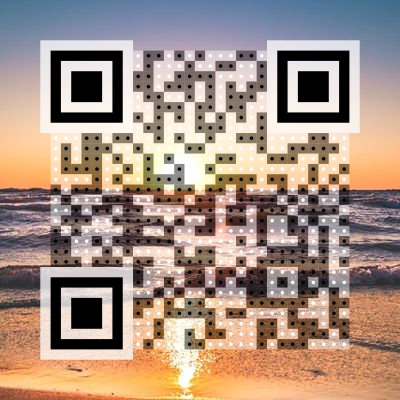
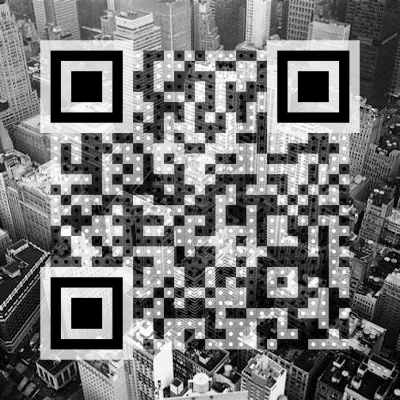
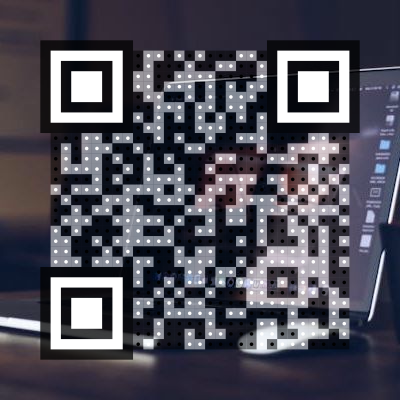
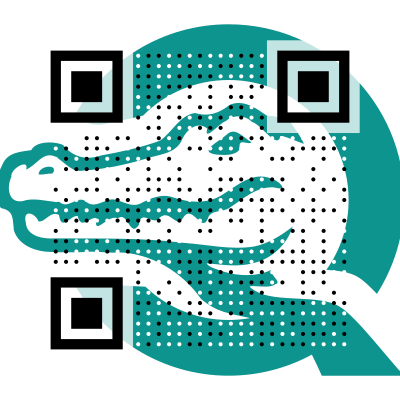
A transparent QR code sits directly on top of a background image. Instead of the standard white rectangle with black modules, the image shows through — the QR code becomes part of your design rather than an interruption of it.
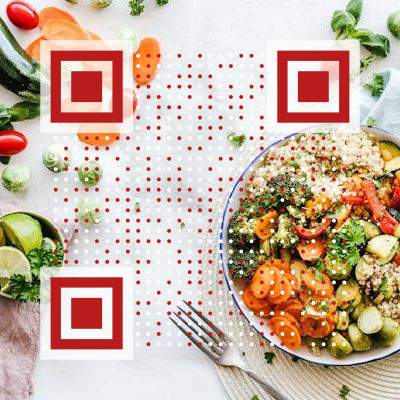
A restaurant menu with a QR code on a food photo. A concert poster where the code blends into the artwork. A product label where the code sits on the product image. Still scannable, but integrated.
How It Works
- Upload your image. Any JPG, PNG, WebP, or SVG works as a background.
- Position the QR code. Use the built-in cropper to place and resize the QR code on your image.
- Choose output mode. “Full image” exports the entire image with the QR overlay. “Crop to QR” exports just the QR area.
- Adjust the look. Set module color, dot shape (circle or square), dot size, and overlay opacity.
- Ensure scannability. Toggle shade, smart contrast, or hit “Fix contrast” for automatic adjustment.
- Download. Export as PNG. Everything is processed in your browser — your image never leaves your device.
The live preview updates in real time as you change any setting.
The Controls That Make It Scan
The challenge with any QR-on-image overlay is contrast. These controls solve it:
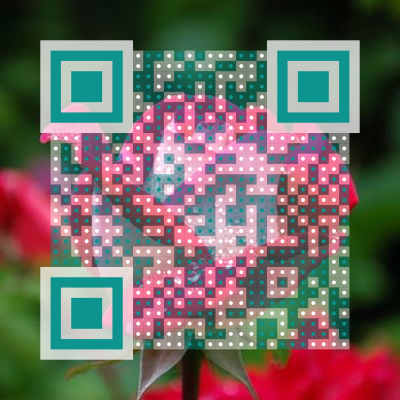
Overlay opacity. Controls how opaque the QR modules are. Lower values let more of the background show through, higher values make modules more visible. Find the balance between design and scannability.
Shade. Adds a semi-transparent backing behind the QR area. This creates separation between the modules and the background image, improving contrast without fully hiding the image. Works on any background.
Smart contrast. Analyzes the brightness of each area of the background image and adapts module rendering per cell. Modules over dark areas are handled differently from modules over light areas — automatically.
Invert. Flips dark and light modules. Essential for dark backgrounds where standard dark modules would disappear.
Fix contrast. One-click auto-adjustment. Analyzes your current settings and background, then adjusts opacity, shade, and contrast for reliable scannability. Use this when you are unsure about your settings.
Dots only. Renders only individual dots without connecting elements — a cleaner look that lets more background show.
Finder style. The three corner patterns can be customized independently. Finder backing with adjustable opacity, padding, and roundness ensures the scanner can locate the code even on busy backgrounds.
Error correction. Higher levels (Q or H) add redundancy that compensates for background interference. Use Q (25%) or H (30%) for busy backgrounds.
Use Cases
Product photos. Overlay a QR code on your product image — linking to a product page, reviews, or purchase link. The code becomes part of the image instead of competing with it.
Business cards. Place the code on your headshot, logo, or a branded texture instead of a plain black square in the corner.
Posters and flyers. Blend the code into event artwork. The transparent mode matches the poster’s visual language.
Social media. Instagram posts, stories, and TikTok thumbnails with QR codes that match the visual style look native, not pasted on.
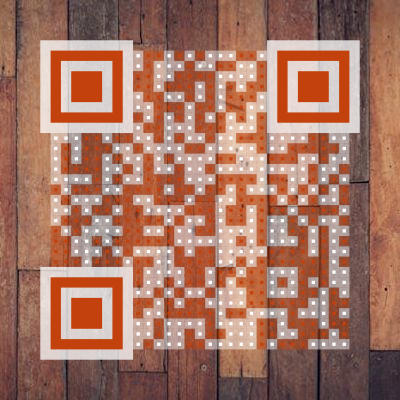
Packaging. Overlay the code on textures, patterns, or product images already part of your label design.
Menus. A transparent code on a food photo or branded background feels more premium than a stark black square.
Tips
- Start with shade ON. It works on virtually any background and is the fastest path to a scannable result.
- Use “Fix contrast” if unsure. It auto-adjusts your settings for scannability in one click.
- Test with your phone camera. Scan the preview on screen before exporting. If it scans on screen, it will scan in print.
- Higher error correction for busy backgrounds. Step up to Q (25%) or H (30%) when the image behind the code has lots of detail.
- Dark background? Try invert. Flipping dark/light modules is often all you need for dark images.
- Export at high resolution for print. Transparent QR codes are raster images (pixels, not vectors). Use a resolution that matches your print size — 300 DPI at final size is the standard.
- Shorter URLs produce fewer modules. Fewer, larger modules are easier to scan against a complex background.
Customization Options
Transparent mode has its own rendering style — semi-transparent overlays with contrast dots — rather than the module styles from the regular designer. Within this mode you can customize:
- Dot shape — circle or square modules
- Dots only — renders individual dots without the semi-transparent overlay grid, for a cleaner, more minimal look
- Color — modules can be any color, not just black. Try your brand color for a cohesive look. Make sure the color has enough contrast against your background image — a dark color on a light image, or a light color on a dark image.
- Finder patterns — the three corner markers can use any of the available finder styles with adjustable backing
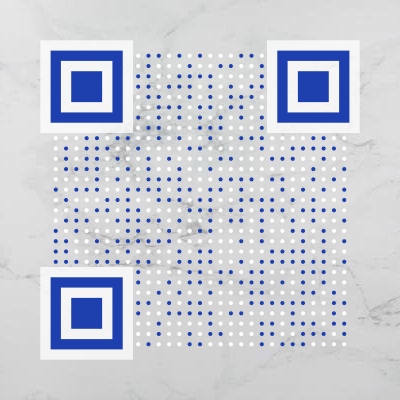
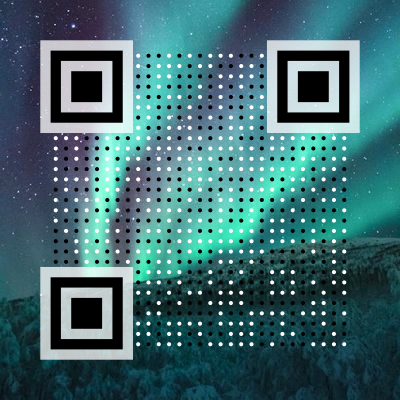
Experiment in the live preview — the best results often come from unexpected combinations of color, dot shape, and background image.
Found this useful?
Share it with someone who needs it.
Frequently Asked Questions
? Is the transparent QR code generator free?
Yes, completely free. Transparent mode, background image upload, and all customization options are available without signup or payment.
? Are transparent QR codes scannable?
Yes, when designed correctly. The key is contrast — the modules need to stand out from the background image. Our smart contrast feature helps ensure this, and the live preview lets you verify before downloading.
? What image formats work as backgrounds?
You can upload JPG, PNG, WebP, and SVG images. Higher resolution images produce better results, especially for print use.
? Can I use transparent QR codes for print?
Yes. Download as PNG at high resolution for print. Note that transparent QR codes with background images are raster images — unlike plain SVG codes, they cannot scale infinitely. Choose a resolution that matches your print size.
? What makes a good background image?
Any image works — the shade, smart contrast, and fix contrast controls handle difficult backgrounds automatically. That said, images with large areas of consistent color or soft gradients need the least adjustment. For busy or complex images, enable shade and smart contrast for best results.
? Can I combine transparent mode with custom styles?
Absolutely. Transparent mode works with all 45+ module styles. You can overlay Dots, Rounded, Botanical, or any other style on your background image.
Ready to create your QR code?
45+ artistic styles, free SVG export, no signup needed.
Create Transparent QR Code →