QR Code MCP Server
Tell your AI assistant what you need and get a finished QR code back in the chat. One URL to add, no API key, nothing to install.
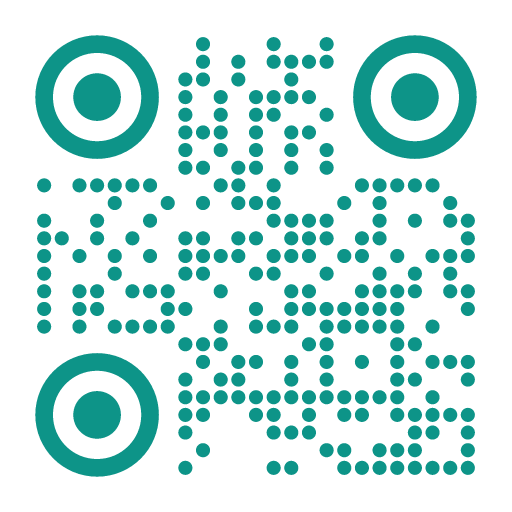
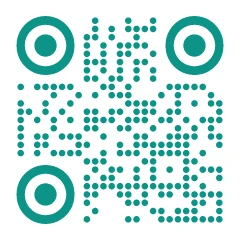
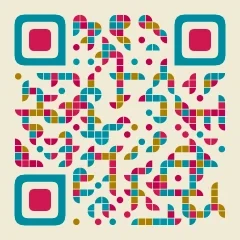
Make a QR code for example.com/menu in teal with rounded dots.
Done. Teal, rounded dots, and plenty of contrast so it scans reliably. Want your logo in the middle?
What It Does
MCP, the Model Context Protocol, is how AI assistants use outside tools. Add the QRocodile server and your assistant can design QR codes for you: you describe what you want, it chooses the style, and the finished image shows up right in the conversation.
Under the hood it runs the same render engine as the QRocodile generator and the QR Code API, so a QR code looks exactly the same wherever you make it, with the same styles, presets, and colors.
We render, but we do not store. What you encode is never written to a database.
Up and Running in Three Steps
- 1
Add the Server
Paste one URL into your assistant, or run a single command.
- 2
Sign In
Your browser opens and we email you a six-digit code. No password, no sign-up form.
- 3
Ask for a QR Code
Describe the QR code you want. Your assistant calls QRocodile and shows you the result.
Add It to Your Assistant
Every assistant needs the same address. Add it once, sign in once, and you are done.
https://mcp.qrocodile.ioThis is the only address we run the server on. If a link or a tutorial points anywhere else, do not use it.
Claude on Desktop and the Web
- 1
Go to
Customize›Connectorsand chooseAdd custom connector. - 2
Paste and click
Add. - 3
Click
Connectand finish the sign-in in your browser. - 4
In a chat, click
+and switch QRocodile on underConnectors.
Custom connectors work on every Claude plan; the free plan allows one.
On Team and Enterprise plans, an owner adds the connector first under “Organization settings”, and then each member connects it for themselves.
Claude Code
claude mcp add --transport http qrocodile https://mcp.qrocodile.ioAfter adding it, run /mcp inside Claude Code to sign in.
ChatGPT
- 1
Open
Pluginsin ChatGPT on the web, click+, and chooseAdd custom MCP server. - 2
Paste as the server URL, set the authentication to
OAuth, confirm the warning, and clickCreate as a plugin. - 3
Sign in when ChatGPT opens the QRocodile page, then install the plugin.
- 4
In a new chat, type
@and pick the plugin.
Availability depends on your plan and workspace settings, and OpenAI changes the menus now and then. OpenAI’s guide has the current steps.
Codex
codex mcp add qrocodile --url https://mcp.qrocodile.ioCodex opens your browser for the sign-in as soon as it sees the server supports OAuth.
Cursor
{
  "mcpServers": {
    "qrocodile": {
      "url": "https://mcp.qrocodile.io"
    }
  }
}
Cursor shows “Needs login” next to the server. Click it to sign in.
VS Code
{
  "servers": {
    "qrocodile": {
      "type": "http",
      "url": "https://mcp.qrocodile.io"
    }
  }
}
VS Code opens the sign-in the first time the server starts.
Other Clients
Any client that supports remote MCP servers with OAuth sign-in works with the server URL above. If your assistant can edit its own settings, you can also just ask it:
Add the remote MCP server “qrocodile”
to my configuration.
URL: https://mcp.qrocodile.io
Transport: Streamable HTTP
Sign-in: OAuth
Things to Try
“Make a QR code for example.com/menu in teal with rounded dots.”
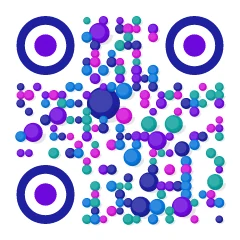
“List the playful presets and make a QR code for my website with the one you like best.”
“Create a WiFi QR code for the network Cafe with the password blueberry42.”
“Give me an SVG QR code for tel:+4915112345678 with the Instagram logo in the middle.”
“Make QR codes for example.com/table/1 through example.com/table/10, all in dark green.”
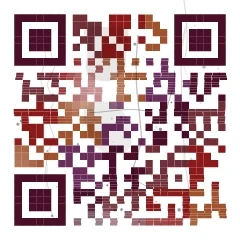
“Which style would suit a vintage record shop? Show me three options.”
Four Tools
Renders a QR code from any text, as a PNG image or as SVG markup. Takes a preset, your own colors, shapes, logo, and size, or a full design with gradients, palettes, and halos.
Explains the full design options, from gradients and palettes to halos and style tuning, so your assistant can use them without guessing.
Lists the ready-made looks, optionally filtered by tag, so your assistant can show you options before it renders.
Lists the pattern shapes, corner shapes, and built-in logos your assistant can choose from.
What the Server Can Access
What It Sees
The text you want to encode and the design options your assistant picks. Nothing more.
What It Never Sees
Your conversation, your files, or your other connectors.
What It Never Changes
The tools only render and list. None of them writes, sends, or deletes anything for you.
Sign-In and Privacy
The first time you connect, we email a six-digit code to the address you enter, and you type it into the page your assistant opened. There is no password. Each code works once and expires after ten minutes.
We store your email address to identify your account and to send you the code, plus request details such as time, format, and size, which abuse protection and usage counting need. What you encode is never stored.
Your assistant stays connected while you use it and signs out on its own after 30 days without use. To disconnect sooner, remove the connector in your assistant.
The details are in our privacy policy.
Found this useful?
Share it with someone who needs it.
Common Questions About the MCP Server
?
Is the MCP server free?
Yes, during the beta, with a fair-use limit of 60 renders per minute. The QR codes are yours: no watermark, no attribution, and fine for commercial use and print runs.
?
Do I need an API key?
No. You sign in with a code we email you. An API key is only for calling the REST API directly from your own code.
?
Which assistants work with it?
Any assistant that supports remote MCP servers with OAuth sign-in, including Claude, ChatGPT, Codex, Cursor, and VS Code. Use the steps above, or paste the server URL into your client.
?
What can the REST API do that the MCP server cannot?
The QR code itself looks the same: the MCP server accepts the full design, including gradients, palettes, halos, and style tuning. The QR Code API is for rendering from your own software, in volume and with no assistant in between. It is also the easier route for your own logo, since a logo has to be sent as image data, which a chat rarely has.
?
Why do I get an image and not SVG code?
PNG is the default because an assistant can show an image right away, whereas SVG arrives as thousands of characters of markup. Ask for SVG when you want a vector file to save or print.
?
Do you store what I encode?
No. The content is encoded into the image and then discarded. We log request details for abuse protection and usage counting, never the content itself.
?
The sign-in code did not arrive. What now?
Check your spam folder, then start the connection again from your assistant. We only send the code after you submit your address on the sign-in page, and it expires after ten minutes. Five wrong attempts cancel the sign-in.
?
The sign-in page says the request has expired.
A sign-in request lasts ten minutes and works once. Start the connection again from your assistant and finish the sign-in in the window it opens.
?
How do I disconnect?
Remove the connector in your assistant. Access also ends on its own after 30 days without use.
?
What does the server implement?
It speaks MCP over Streamable HTTP and signs you in with OAuth: the authorization code flow with PKCE, dynamic client registration, and the standard discovery documents. Compatible clients configure themselves from the URL alone.
Need QR Codes in Your Own Software?
The QR Code API renders the same designs over REST, ready for your own software, scripts, and large batches.
Explore the API